Configure a Verizon.net account using IMAP

Configure a Verizon.net account using IMAP

Configure a Verizon.net account using IMAP

article type icon
Learn how to set up your Verizon migrated account in third party email applications using the IMAP protocol.

Tip icon.This article should be followed only if you haven't used POP3 with a 3rd party mail client. If you're a Verizon migrated user and want to continue using your POP3 configured client, you'll need to update your client with POP3 settings.

IMAP is a method used to retrieve emails from a mail server. Your messages are stored on the server, and each time you check your inbox, the email client contacts the server to get your messages. Unlike POP3, your messages aren't downloaded to your computer or device, thus you can sync your account on multiple platforms.

If you switch from POP3 to IMAP, only new messages will move from the server to your devices. Any emails previously saved on your device by a POP3 client, won't transfer.

After migrating your Verizon.net email to AOL Mail, follow the steps below to set up your 3rd party client. Be aware some sections will link off to the client's help page and they won't be able to answer questions about AOL Mail settings, or your Verizon.net username or password.

No matter what application or software you use, the IMAP sever and port settings will be the same. Just make sure SSL is enabled and you use your full email address, including @verizon.net.

Server SettingsPort Settings
 Incoming mail server (IMAP): imap.aol.com
 Outgoing mail server (SMTP): smtp.verizon.net
 IMAP-993-SSL
 SMTP-465-SSL


Update email settings in Outlook 2016, 2013, or 2010


Update email settings in iOS Mail
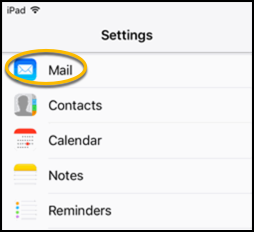
  1. From your home screen, tap the Settings icon User-added image.
  2. Tap on the Mail menu.

    User-added image

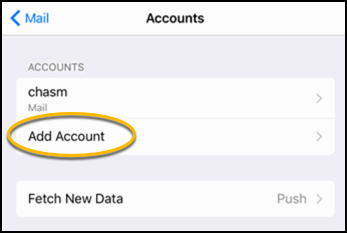
  3. Tap Accounts.

    User-added image

  4. Tap Add Account.

    User-added image

  5. Tap AOL.

    User-added image

  6. Type in your name, the email address/alias, and password that you selected during the migration process, including @verizon.net.
  7. Tap Next and follow the on-screen instructions.

Update email settings in Android Mail

  1. Tap on the Settings button on your home screen.
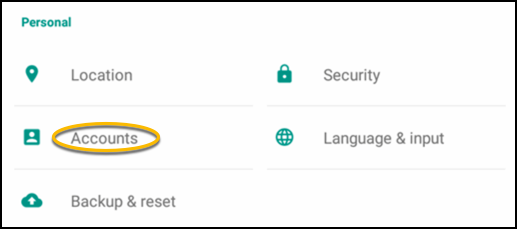
  2. Scroll down and tap Accounts.

    User-added image

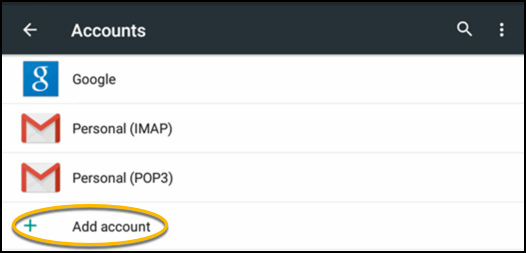
  3. Tap Add account.

    User-added image

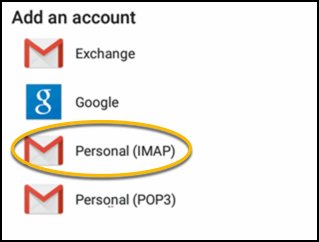
  4. Tap Personal (IMAP).

    User-added image

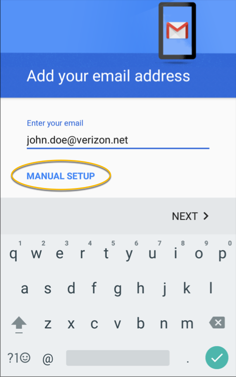
  5. Type in the full email address/alias that you selected during the migration process and tap MANUAL SETUP.

    User-added image

  6. Check the Personal (IMAP) radio button by tapping on it and then tap Next.

    User-added image

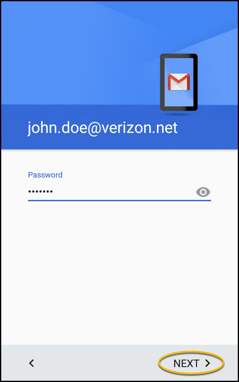
  7. Type in the password that you created during the migration process and tap Next.

    User-added image

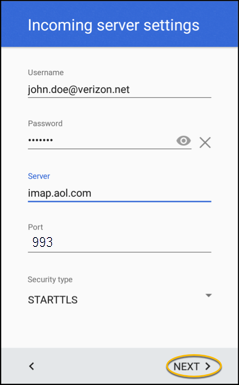
  8. Input the following settings and then tap Next:
    • Username: The full email address/alias that you selected during the migration process, including @verizon.net.
    • Password: The password that you created during the migration process.
    • Server: imap.aol.com
    • Port: 993
    • Security type: Make sure this is set to STARTTLS.

    User-added image

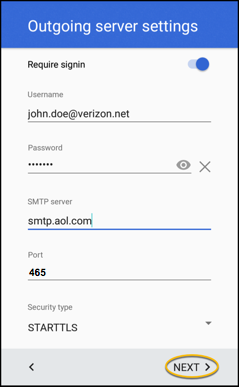
  9. Input the following settings and then tap Next:
    • Username: The full email address/alias that you selected during the migration process, including @verizon.net.
    • Password: The password that you created during the migration process.
    • SMTP Server: smtp.verizon.net
    • Port: 465
    • Security type: Make sure this is set to STARTTLS.

    User-added image

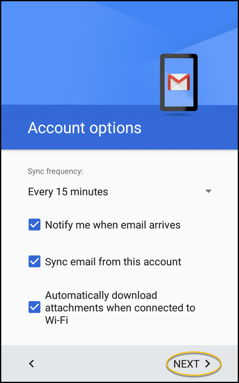
  10. Check the boxes according to your preferences and then tap Next.

    User-added image

  11. Type in an Account name and your name and then tap Next.
    • Related Articles

    • Update Verizon.net account info in POP3 email applications

      Update Verizon.net account info in POP3 email applications Learn how to update your account info for 3rd party email clients. These steps should be followed only if you've been using a 3rd party email client with POP3 enabled to send and receive ...
    • AOL Mail for Verizon Customers

      https://help.aol.com/products/aol-mail-verizon AOL Mail for Verizon Customers AOL Mail welcomes Verizon customers to our safe and delightful email experience! Check your MailTry the AOL app
    • AOL Help

      https://help.aol.com/ Recommended For You AOL Mail AOL Mail provides a safe and delightful email experience for millions of people around the world.Get Help System Mechanic Restore power, speed and stability with over 200 critical tests and 50 tools ...
    • Ways to securely access AOL Mail

      https://help.aol.com/articles/allow-apps-that-use-less-secure-sign-in Ways to securely access AOL Mail Maintain security while you access your account. Find out the best ways to use AOL Mail to keep your email secure and private. By default, we block ...
    • AOL Reset or change your password

      Reset or change your password Your password gives you access to every AOL service you use. Learn how to reset your password if you forget it, and how to change your password. Your password gives you access to every AOL service you use. If you've ...